

When I had to troubleshoot my network for buffering issues, the problem turned out to be IPv6, and disabling it fixed the buffering for good. But that’s not the only thing that can cause stuttering in video calls and lag in gaming, as bufferbloat is another common but lesser offender.
Unlike a slow connection where everything is uniformly sluggish, bufferbloat is sneaky. Your speed test can show perfectly healthy numbers, yet web pages hang, video calls stutter, and games lag the moment someone else on the network starts a large download. If that sounds familiar, your router settings might be quietly hurting your internet speed, and bufferbloat could be the reason why.
What is bufferbloat, and why does it make your internet feel slow?
When your router queues too much data, and everything else suffers

When you send or receive data, packets move hop by hop, which is from your device to the router, then to the modem, and out to your ISP. At the slowest link in this chain (usually the connection between your router and ISP), your equipment uses memory buffers to hold packets that can’t be sent right away.
Bufferbloat happens when these buffers are too large. Instead of dropping packets it can’t handle quickly, your router keeps accepting more and more data into a growing queue. As that queue fills up, every new packet has to wait behind hundreds of others before it actually gets transmitted. That waiting time shows up as a massive spike in latency.
In the real world, even though your bandwidth might be fine, activities like browsing, video calls, and gaming depend on low latency, not just raw speed. When your upload queue is backed up with, say, a cloud photo backup running in the background, your Zoom call’s audio packets sit behind all that photo data, waiting their turn. That’s when you hear choppiness, experience rubber-banding in games, or watch web pages stall for no obvious reason.
The frustrating part is that bufferbloat doesn’t reduce your maximum speed by much. It ruins the responsiveness of everything else while any large transfer is in progress. And because the transfers that trigger it, including cloud backups, OS updates, and file syncs, often run invisibly in the background, most people just think their internet is slow without realizing a single device is choking the connection for everyone.
How to test if you have a bufferbloat problem
A quick browser test can reveal hidden latency spikes
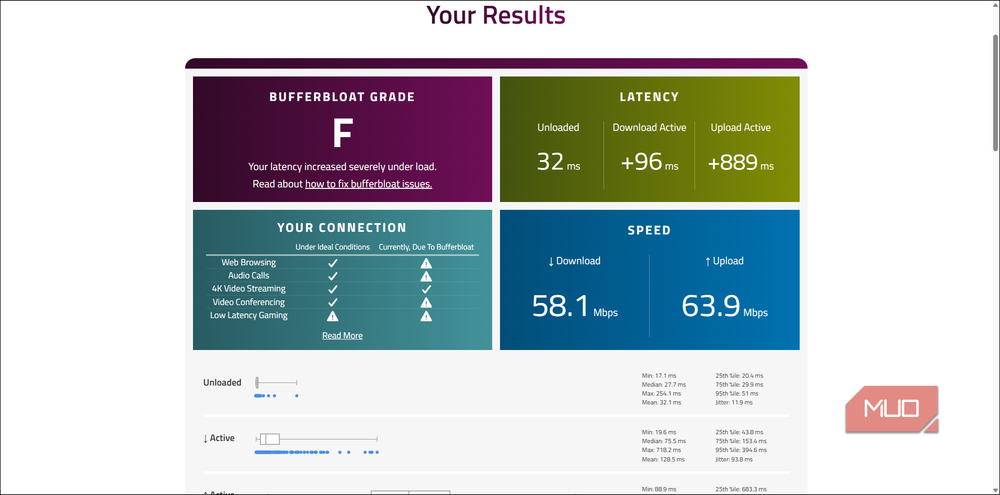
Now that you know what bufferbloat looks like in theory, you’ll want to check if it’s actually affecting your connection. The simplest way is to use a browser-based test like the Waveform bufferbloat test. It measures your baseline latency when the line is idle, then saturates your connection with downloads and uploads while tracking how much your latency increases. At the end, you get a letter grade: A means your latency stays low under load, while anything below C suggests significant bufferbloat.
If you want a more hands-on approach, you can run a continuous ping to a stable host like your ISP’s gateway or Google’s DNS (8.8.8.8) and then start a large download or upload. Watch what happens to your ping times. A few extra milliseconds are normal, but if your latency jumps by hundreds of milliseconds or more while the transfer is running, that’s a strong sign of bufferbloat.
For the most accurate results, test over Ethernet rather than Wi-Fi. Wireless connections add their own variable latency from interference and signal fluctuations, which can make it harder to isolate bufferbloat from other issues.
How to fix bufferbloat on your router
Smarter queue management keeps latency low even under heavy load

The standard fix for bufferbloat is enabling Smart Queue Management (SQM) on your router. SQM uses algorithms like fq_codel or CAKE to deliberately keep buffers short and actively control how packets are scheduled. Instead of letting your router build up a massive queue, SQM drops or reorders packets intelligently so that latency stays low even when your connection is maxed out.
The catch is that not every router supports SQM out of the box. If yours does, you’ll usually find it under QoS (Quality of Service) or traffic management settings. When enabling SQM, set your WAN speed slightly below your actual line rate, so if your connection tests at 100 Mbps down and 20 Mbps up, set SQM to around 95 and 18 Mbps. This small headroom lets the router control the queue instead of letting your ISP’s equipment do it, which is where the bloated buffers typically live.
If your router doesn’t support SQM natively, you have a few options. Flashing custom firmware like OpenWrt gives you access to SQM on supported hardware. You could also change your router settings to fix streaming buffering by enabling basic QoS, which is less precise than SQM but can still help by prioritizing latency-sensitive traffic. Even simply enabling your router’s built-in QoS and capping your bandwidth slightly below your line speed can make a noticeable difference.
If you’re on a fiber connection, you’re generally in better shape since fiber tends to have lower baseline latency and less bufferbloat than DSL or cable. But it’s not immune, especially if your router’s firmware handles queuing poorly.
Bufferbloat isn’t always the problem
Other network issues can mimic the same symptoms

It’s tempting to blame bufferbloat for every lag spike, but it’s important to understand when it’s actually causing the issue and when something else is going on. Bufferbloat, by definition, only shows up when your connection is saturated. If your latency is bad even when nobody on your network is downloading or uploading anything, the problem is somewhere else.
Wi-Fi interference, for instance, can cause random ping spikes that look a lot like bufferbloat but have nothing to do with buffer queues. An underpowered router struggling to handle too many connected devices, poor ISP routing, or even server-side issues in the game or service you’re using can all produce similar symptoms.
Bufferbloat test results can also be misleading. Different tools use different methods and can produce wildly different grades for the same connection. A “B” or “C” grade doesn’t necessarily mean you’ll have problems in real-world use, especially if your connection rarely gets fully saturated.
The reliable way to confirm bufferbloat is to check if your latency is fine when the line is idle but spikes heavily during uploads or downloads, and if those spikes disappear the moment the heavy traffic stops. If that’s the pattern, SQM or QoS will help. If your latency is consistently bad regardless of load, you’re likely dealing with ISP congestion, routing problems, or local Wi-Fi issues that no amount of buffer tuning will fix.
Buffer tuning can fix your broken internet
Bufferbloat is a real problem that affects a lot of home networks, and fixing it with SQM or QoS can dramatically improve how your internet feels during everyday use. If your video calls drop out when someone starts a download, or your games lag every time a phone backs up to the cloud, it’s worth testing for and addressing.
That said, don’t fall into the trap of chasing a perfect test score while ignoring other factors. A combination of proper queue management, a stable Wi-Fi setup, and a reasonably configured router will do more for your internet experience than obsessing over any single metric.


